HTTP
HTTP (HyperText Transfer Protocol) is the application layer protocol used by web browsers to communicate with web servers. Over the last several years HTTP has become the primary protocol for almost all web applications and web APIs.
In this document we shall explain the basics of HTTP and we will use Java
code to implement a (simple) HTTP server and a command-line HTTP client
that can be considered a simplified version of curl.
By implementing the code ourselves, we gain two advantages. First, we can explicitly see how the basic parts of the HTTP protocol work. Second, we can have our code log to the console window every step of the HTTP protocol so that we can watch those steps happen in real time.
All the example code mentioned in this document is in the following zip file.
The following zip file contains an extended version of the Java HTTP server.
HTTP/1.1 syntax
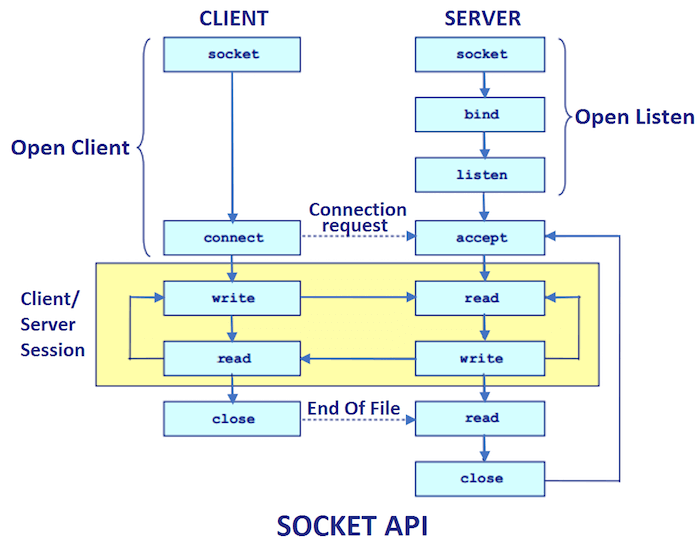
Since HTTP is an application layer protocol, it lives in the yellow box from this Socket_API diagram. HTTP is used by the client and server after their two sockets have established the TCP network connection. As the picture implies, after the sockets establish the connection, the client and server take turns sending request and response messages over the connection. HTTP defines what these messages look like.
HTTP/1.1 is a text protocol. The messages sent by the client and the server are mostly lines of text. HTTP/1.1 defines what the text in each request and response message looks like.
We can think of HTTP/1.1 as something like a programming language. A useful way to learn any programming language is to combine looking at lots of examples with looking at the language's grammar.
Here is a picture, from MDN, that shows an example of a request and a response message.
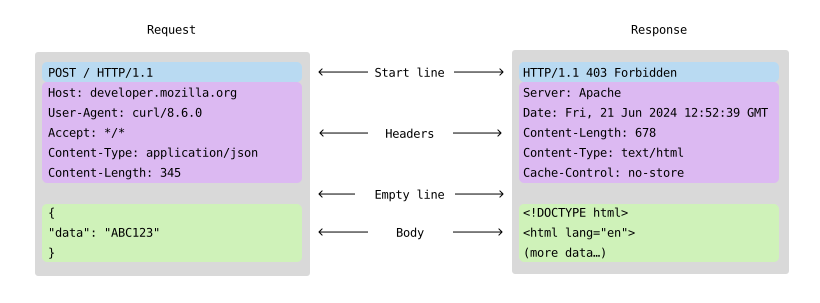
Here is similar information written in the form of a BNF grammar. Notice that in both the picture and the grammar, an HTTP message is made up of three parts, a request or response line, a sequence of headers, and an optional body.
    http-message = (request-line | status-line)
                   message-header*
                   CRLF
                   [ message-body ]

    request-line = method SP request-uri SP http-version CRLF

    status-line = http-version SP status-code SP reason-phrase CRLF

    message-header = field-name ":" [ field-value ] CRLF

    message-body = OCTET*
The initial line and the message headers are always plain text that we can read. The message body is defined to be a sequence of octets (another word for bytes). The body may be binary data (for example, an image file) or it may be readable text (for example, an HTML file).
The CRLF between the headers and the body is a sentinel value that marks
the end of the headers. This sentinel is needed because the recipient of a
message is not informed about how many headers will be in the message.
An easy way to see more examples of HTTP messages is to use curl on the
command-line with the -vso nulcommand-line options. The -v tells curl
to show us its HTTP dialog with the server. The -o nul tells curl to
not show us the response body, since it may be large and it may be binary.
The -s tells curl to not show us its download progress bar. (On Linux
or Mac command-lines, replace nul with /dev/null.)
    > curl -vso nul  http://cs.pnw.edu/~rlkraft/
    > curl -vso nul  http://cs.pnw.edu/~rlkraft/roger-v2.css
    > curl -vso nul  http://cs.pnw.edu/~rlkraft/wrong/wrong/
    > curl -vso nul  http://cs.pnw.edu/~rlkraft/cs33600/for-class/Socket_API.png
    > curl -vso nul  https://www.pnw.edu
    > curl -vso nul  https://www.nytimes.com
    > curl -v        https://httpbin.org/status/418
Look carefully at the output from curl. Lines that begin with > are from
the HTTP request message that curl sends to the server. Lines that begin with
< are from the HTTP response message that the server sends back to curl.
Lines that begin with * are information that curl is logging to the
console about its internal state.
Notice that response headers can be very long and there can be quite a few of them.
Here is a link to an explanation of HTTP/1.1 messages.
- HTTP messages from MDN
Here is a link to a detailed syntax for HTTP/1.1.
HTTP method
The first word on the first line of an HTTP request message is the request method. Think of an HTTP request as being like a "method call" (or a "function call") in a programming language. The HTTP method is the name of the method being called and the rest of the request message is the method call's parameters.
HTTP has only nine methods, GET, POST, PUT, PATCH, DELETE, HEAD,
OPTIONS, TRACE, CONNECT. The first five are CRUD methods (Create, Read,
Update, Delete). These methods let HTTP requests implement database like
operations.
- HTTP methods - MDN
- Methods - RFC 9110
HTTP status code
The first line of every HTTP response message contains a status code. The status code is part of the "return value" for the HTTP method sent by the client in its request message.
A status code is a three digit decimal number. Status codes are grouped into five categories.
- Informational responses (100 - 199)
- Successful responses (200 - 299)
- Redirections (300 - 399)
- Client errors (400 - 499)
- Server errors (500 - 599)
In the response line, the status code is followed by a "reason phrase". This field is there for human readability, so that you don't need to remember, or have to look up, that status code 304 means "Not Modified".
- HTTP status codes - MDN
- List of HTTP status codes
- Status Codes - RFC 9110
The most famous status code is "404 Not Found", which means that the path in a URL does not point to a resource on the web server. Many websites like to have fun and/or be creative with their 404 responses. Here are a few examples (notice that several of them use mouse movement effects). You should also use the "Network" tab in Chrome's Dev-Tools to see that the HTTP status code really is 404.
- github.com/wrong-wrong-wrong
- alistapart.com/wrong-wrong-wrong
- https://www.manning.com/wrong-wrong-wrong
- new.studio/wrong-wrong-wrong
- hejlfoundation.org/wrong-wrong-wrong
- 404s.design/wrong-wrong-wrong
- https://www.404s.design - Lots of creative 404 pages.
HTTP headers
The message headers come right after the first line of a message. Each
header is exactly one line of text terminated by the two ASCII control
characters CRLF (\r\n). The recipient of a header line does not know
how many characters it will contain. The CRLF acts as a sentinel value
to mark the end of a header line.
A message can have any number of headers. The recipient of a message does
not know how many headers it will receive. The sender of the message should
send a blank (empty) line to act as a sentinel value marking the end of the
headers. Since each header line ends with a CRLF, and an "empty line" is
essentially a CRLF, the end of the headers ends up looking like CRLFCRLF.
In code, this is usually written using escape sequences, \r\n\r\n.
There are hundreds of possible HTTP headers. There are a number of standard headers, but web browsers and servers can make up their own headers.
Three of the most important headers are Host, Content-length, and
Content-type. The Host header is required in a request message by HTTP/1.1.
The Content-length and Content-type headers are required in any message
that has a body attached to it.
HTTP body
The HTTP body comes at the end of a message. Both request messages and response
messages can have a body. A message body can be empty. If a message needs a
non-empty body, then the message must include a Content-Length header with
a parameter that specifies the exact number of bytes in the body.
If a message does not need a body, then there should be either a
Content-Length header with a parameter of 0 or no Content-Length header.
After the recipient of a message has read the last header (when it sees the
\r\n\r\n sentinel) the recipient begins to read the bytes of the body. The
Content-Length header is the "count value" needed by the recipient to know
when it should stop reading the message body. Without the Content-Length
header, the recipient would have no way of knowing where the byte data for
the body ends.
By definition, the body of a message is just a stream of "octets", the word
used by the HTTP standard for "byte". A body, by itself, does not have any
data type. The recipient of a body cannot examine the bytes in a body and
determine what the body's data means (is it HTML, CSS, a JSON structure, an
image file?). The sender of the body should include a Content-type header
to let the recipient know what the data in the body means.
Besides having a "content type" (like HTML, CSS, JSON, or JavaScript) a body
may also have a "content encoding" (usually some compression format). If a
body is a large HTML page, the web server may decide to compress that HTML
file into a (much smaller) zip file. Then the body has the content encoding
of a zip file but the content type of an HTML file. If a body has a content
encoding header, then the Content-length header should be the length of
the content after it is encoded.
There are situations where a server may not know the length of a body before
it starts to send it. In that case, the server cannot send a Content-Length
header. In these cases, the server should send a Transfer-Encoding: chunked
header instead of the Content-Length header, and the body should be sent
as "chunks", with each chunk prefaced by its length.
- Request body
- Response body
- Content-Length header
- Content-Type header
- MIME type (content type)
- Media type (content type)
- Content-Encoding header
- Transfer-Encoding header
- Chunked transfer encoding
- The end-of-message problem
Web servers
A web server is a process that has a server socket that establishes client connections and then uses HTTP to communicate with the client over the network connection.
The main job of a web server is to allow clients to "fetch" URLs from the server. We discussed fetching a URL in the document about network clients.
While a web server is technically a process running on a host computer, we will sometimes use the phrase "web server" to mean the host computer itself along with the folder in its file system that the web server process distributes resources from.
Modern web servers usually play one of three roles. They host either
- a website,
- a web service,
- a web application.
Hosting a website is the original use for an HTTP server. By a website we mean a collection of HTML pages meant for viewing in a web browser. This collection of readme documents for CS 33600 is an example of a website. Another example is PNW's website. Using HTTP servers to host websites began in the early 1990's.
Hosting a web service is a newer use for HTTP servers. We discussed web services in the document about network clients. A web service is usually designed to provide data instead of web pages. An HTTP server hosting a web service will usually respond to client requests with JSON data structures instead of HTML documents. Using HTTP servers to host web services began in the early 2000's.
Hosting a web application turns a web server into a "program" that you can run in your browser. Traditionally you run a "program" as a process on your local computer. A web application is a program that runs partially as a process on the web server computer and partially as JavaScript executing in your browser. Your browser acts as the GUI for the program. Your browser can use HTTP request messages to communicate GUI events to the web server and the server can use HTTP response messages to update your browser's view of the program. Using an HTTP server to host a web application began around 2004 when Google created Gmail and followed that in 2005 with Google Maps.
In all three of these roles, the web server's primary responsibility remains the same, let clients fetch URLs.
- What is a web server? - MDN
- The difference between web page, website, web server - MDN
- What is the difference between a web app and a website? - AWS
- Introduction to Web Servers - DigitalOcean
Java HTTP server
The http_server.zip folder contains three versions of a simple HTTP server written in Java.
The three HTTP servers only implement the GET method. This keeps the servers simple and allows us to investigate the most important and common features of HTTP.
The first HTTP server does not implement persistent connections (keep-alive). The second server does. See
The third HTTP server is multi-threaded and can handle multiple client connections simultaneously.
Compile the first server at the command-line.
http_server> javac HttpServer_v1.java
Then run it from the command-line.
http_server> java HttpServer_v1
By default the server runs on localhost port 8080. You can change the port number using a command-line argument.
Open a tab in your browser and type this URL into the browser's address bar.
localhost:8080/static.html
If you have the server running, you can click on the following link.
You should see a web page appear in the browser and a lot of logging output appear in the server's console window. Notice that the server will have made six or seven (depending on what browser you are using) client connections. The browser makes one TCP connection to the server for each file that the browser wants to download. To render the file "static.html" the browser needs to fetch the following six files,
- static.html,
- static.css,
- static.js,
- Anakin1.png,
- Anakin2.png,
- Anakin3.png,
and a possible seventh connection might be for "favicon.png".
Those files all come from the sub-folder "public_html". That folder is the "website" that the server is serving. (The folder served by the server is set by the "root" property in the "httpserver.properties" file.) Every HTTP server has a specific folder that it serves from. This is a security feature. It would be a bad idea to let the HTTP server serve any file from its host computer. Every HTTP server is restricted to serve files from just a single folder. That restriction is enforced by code in the HTTP server program. It is not enforced by the computer's operating system. (Try to find the lines of code in "HttpServer_v1.java" that enforces this restriction.) If you want to see the restriction enforced, then compile the first HTTP client,
http_server> javac HttpClient_v1.java
and run it with the following command-line.
http_server> java HttpClient_v1 localhost 8080 /../Readme.txt
That path is trying to get the "Readme.txt" file from the "http_server"
folder, which is the folder above "public_html". That path is trying to
"escape" from the server's restricted (root) folder. (Try commenting out
the code in "HttpServer_v1.java" that enforces the folder restriction.)
An interesting fact is that the web browser client and the curl client
both refuse to transmit URL's that use the ".." notation (they "normalize"
all URLs before transmitting them). Try the following URLs in the browser's
address bar (or use the following two links).
   localhost:8080/../Readme.txt
   localhost:8080/test/../static.js
Shut down the server (use Control-C) and compile the second server.
http_server> javac HttpServer_v2.java
Then run it from the command-line.
http_server> java HttpServer_v2
Once again, open a tab in your browser and type this URL into the browser's address bar.
localhost:8080/static.html
This time, when the page loads the server gives the browser a persistent TCP connection, so the browser can download several files on one TCP connection. So the whole web page will download in one, two, three, or four client connections (depending on the browser). If the socket connection's time-out is set long enough, you can even reload the web page on the same tcp connection (but the downloads will keep getting blocked by the not yet timed-out socket connection).
Shut down the server (use Control-C) and compile the third server.
http_server> javac HttpServer_v3.java
Then run it from the command-line.
http_server> java HttpServer_v3
Once again, open a tab in your browser and type this URL into the browser's address bar (or just reload the tab that you have open for the previous server).
localhost:8080/static.html
This time, the (multi-threaded) server allows the browser to open several tcp connections simultaneously and the browser can download several files from each persistent, open connection. Since several connections are being used simultaneously, their logging output gets jumbled together. But you can still figure out the sequence of requests the browser made and which files are downloaded on each connection. For this multi-threaded server you can set the socket connection's time-out value for as long as you want and then see how the browser will keep reusing the same open, persistent connections to repeatedly reload files from the website. The browser will not open new connections to the server until the persistent connections time out.
In the "http_server" folder there are several Java client program that are
similar to the client programs in the "network_clients.zip" file. The http
clients in this folder all default to connecting to the servers in this
folder running on localhost at port 8080.
You can also use curl as a client for the servers in this folder.
http_server> curl http://localhost:8080/static.html
Fetching a URL
Let's return to our discussion of fetching a URL from the document about network clients.
In that document we used Java code running in JShell to access and download the contents of a URL. We made use of two "high level" networking classes, HttpURLConnection and HttpClient to abstract away the low level networking code. These two classes hide from the programmer both the Socket API and the HTTP protocol.
If we use these two "high level" classes to access our Java HTTP server, then we can see, from the server's logging information, what these two classes are doing for the programmer.
Here is Java code, that you can run in JShell, to fetch a URL from the website hosted by our Java server. This code fetches the CSS file from the website.
var url = new URI("http://localhost:8080/static.css").toURL()
var connection = url.openConnection()
var scanner = new Scanner(connection.getInputStream())
while ( scanner.hasNextLine() ) { System.out.println(scanner.nextLine()); }
Compile and run the Java server, "HttpServer_v1.java". Then open a terminal window and start a JShell session. Copy and past the above code into JSHell but do it one line at a time so that you can see, in the server's console window, how the HTTP server responds to each line of the Java client.
For example, notice that the openConnection() method did not really open
a socket connection to the server, since the server did not record a client
connection. Then notice that the method getInputStream() creates the socket
connection to the server and downloads the resource pointed to by the URL.
The content of the resource is buffered by the HttpURLConnection object.
When our client code calls the nextLine() method on the InputStream it
got from the connection object, nextLine() is not reading from the network
connection's socket stream. It is reading from a stream connected to a
buffer in the HttpURLConnection object. When the HttpURLConnection
object made the connection to the server, the connection object immediately
downloaded all the data from the URL's resource and stored that data in a
buffer inside the connection object.
Notice that in the User-Agent request header this client identified itself
using the version of Java that is executing the client.
Try re-executing the last line above.
while ( scanner.hasNextLine() ) { System.out.println(scanner.nextLine()); }
There is no output because the Scanner object has exhausted all the data
from the buffer in the HttpURLConnection object.
Try re-executing the second to last line above.
var scanner = new Scanner(connection.getInputStream())
It does not create another connection to the server. Each HttpURLConnection
object can be used to create only one connection to the server.
You can use the URL object to create a new HttpURLConnection object, and
then use the new HttpURLConnection object to re-connect to the server. But
notice again that creating the HttpURLConnection object does not actually
create a socket connection to the server. That doesn't happen until we ask
for a stream from the connection object.
var connection2 = url.openConnection()      // No connection yet.
var stream2 = connection2.getInputStream()  // This creates the socket connection.
var scanner2 = new Scanner(stream2)
while ( scanner2.hasNextLine() ) { System.out.println(scanner.nextLine()); }
We can do a similar experiment using the HttpClient class. Type these lines
into JShell one at a time so that you can see how the server reacts to each
line.
import java.net.http.*
var client = HttpClient.newBuilder().build()
var request = HttpRequest.newBuilder().
      uri(new URI("http://localhost:8080/static.css")).
      build()
var response = client.send(request, HttpResponse.BodyHandlers.ofString())
response.headers()
response.body()
Notice that the socket connection is made when the client object calls
the send() method to send the request object to the server. The send()
method also downloads the content of the URL's resource and stores the content
in a buffer inside the response object. The body() method retrieves what
is saved in the buffer (similarly for the response headers).
Notice that if you resend the request to the server, it creates a new socket connection.
response = client.send(request, HttpResponse.BodyHandlers.ofString())
The HttpRequest object is immutable, so we can only use it to re-fetch the
same URL. But we can reuse the HttpClient object to send a new HttpRequest
object with a different URL.
var request2 = HttpRequest.newBuilder().
      uri(new URI("http://localhost:8080/static.js")).
      build()
var response2 = client.send(request2, HttpResponse.BodyHandlers.ofString())
response2.headers()
response2.body()
Notice in the User-Agent request header that this client identifies itself
as Java's HttpClient class.
We can use JavaScript's Fetch API to do a similar experiment.
Here is a block of JavaScript code that is much like the above Java code. This JavaScript code will "fetch" the given URL.
const response = await fetch("http://localhost:8080/static.css");
const result = await response.text();
console.log(result);
To make this code work, we need a JavaScript environment to run it in (something like a JavaScript version of JShell). With the "HttpServer_v1.java" server still running, use the following link to open the server's website in your browser.
With the browser window open to the "static.html" page, use your keyboard's
F12 key to open a Chrome Dev-Tools window next to the "static.html" web
page. Click on the "Console" tab in Dev-Tools. You should see a prompt
similar to JShell's prompt.
Copy and paste each line of code into the JavaScript console prompt, one line at a time so that you can see the server's reaction to each line of code.
const response = await fetch("http://localhost:8080/static.css");
const result = await response.text();
console.log(result);
Notice that the fetch() method makes a socket connection and downloads
the URL's resource. The content is downloaded into a buffer in the response
object. The text() method reads the buffer as text and then the log()
method prints the content in the Console window.
Here is a slightly more interesting example. This code fetches an image file and then adds that image to the "static.html" web page open in the browser window. Copy and past this code into the Console prompt in Chrome's Dev-Tools window. Notice that this is written as one single line of code using JavaScript's promise chaining.
fetch("http://localhost:8080/documents/klein.gif")
   .then(response => response.blob())
   .then(blob => {
      const img = document.createElement("img");
      img.src = URL.createObjectURL(blob);
      document.getElementById("part1")
              .appendChild(img)})
Try executing this code a second or third time. Try changing the file name to "mobius.gif".
The JavaScript Fetch API, like the Java HttpURLLConnection class and the
HttpClient class, lets us fetch URLs without any mention of the Socket API
or the HTTP protocol. But, as we can see by having these API's talk to our
Java web server, all of these "fetch" libraries create a socket and send
HTTP messages through the socket.
We can go back to the using JShell section from the document about sockets and use code from that section to write all the steps for an HTTP client, including the creation of a socket and the sending and receiving of HTTP messages.
With the "HttpServer_v1.java" server still running, copy and paste this code into a JShell session. It fetches the "static.css" from the website hosted by the server.
var remoteHost = "localhost"
var remotePort = 8080
var ipAddress = InetAddress.getByName(remoteHost);
try (var socket = new Socket(ipAddress, remotePort);        // Steps 5, 6, 7.
     var in = new Scanner(socket.getInputStream());         // Step 9 and 8.
     var out = new PrintWriter(socket.getOutputStream())) { // Step 9 and 8.
   System.out.println("CLIENT: Connected to server: " + remoteHost
                    + " on port " + remotePort );
   System.out.println("CLIENT: Local Port: " + socket.getLocalPort());
   // Step 9. Send the server an HTTP request message.
   out.print("GET /static.css Http/1.1" + "\r\n");
   out.print("Host: " + ipAddress + "\r\n");
   out.print("User-Agent: JShell script" + "\r\n");
   out.print("Accept: */*" + "\r\n");
   out.print("Connection: close" + "\r\n");
   out.print("\r\n");  // Blank line.
   out.flush();
   System.out.println("CLIENT: HTTP request message sent to the server.");
   // Step 9. Receive the HTTP response message.
   System.out.println("CLIENT: Server's HTTP response message is:");
   while (in.hasNextLine()) System.out.println(in.nextLine());
} // Step 10.
The above code is a bit over simplified. It only works with a text response
body and it ignores the response messages. In particular, it does not look
for the Content-Length response header, so it relies on the server closing
the connection.
Below is a client that issues two HTTP requests to the server on one network
connection (a "persistent connection"). In order for the client to know when
the first HTTP response message is complete, this client must find and parse
the Content-Length response header.
Since this client tries to send two HTTP requests on a single connection, this client will not work with server "HttpServer_v1.java".
Compile and run the second version of the HTTP server, "HttpServer_v2.java". That server implements "persistent connections" so a client can send as many HTTP requests as it wants on a single network connection.
var remoteHost = "localhost"
var remotePort = 8080
var ipAddress = InetAddress.getByName(remoteHost);
try (var socket = new Socket(ipAddress, remotePort);         // Steps 5, 6, 7.
     var in = new DataInputStream(socket.getInputStream());  // Step 9 and 8.
     var out = new PrintWriter(socket.getOutputStream())) {  // Step 9 and 8.
   System.out.println("CLIENT: Connected to server: " + remoteHost
                    + " on port " + remotePort );
   System.out.println("CLIENT: Local Port: " + socket.getLocalPort());
   // Step 9. Send the server the first HTTP request message.
   out.print("GET /static.css Http/1.1" + "\r\n");
   out.print("Host: " + ipAddress + "\r\n");
   out.print("User-Agent: JShell script" + "\r\n");
   out.print("Accept: */*" + "\r\n");
   out.print("\r\n");  // Blank line.
   out.flush();
   System.out.println("CLIENT: First request message sent to the server.");
   // Read the response headers.
   System.out.println("CLIENT: Server's first response message is:");
   var entityLength = 0;
   String responseHeader;
   while (null != (responseHeader = in.readLine())) {
      System.out.println(">" + responseHeader);
      if ( responseHeader.startsWith("Content-Length") ) {
         final int i = responseHeader.indexOf(':');
         entityLength = Integer.parseInt(responseHeader.substring(i+2));
      }
      else if ( responseHeader.isEmpty() ) {
         break;
      }
   }
   // Read the entity body.
   var entityBodyBytes = new byte[entityLength];
   int bytesRcvd = 0;
   while (bytesRcvd < entityLength) {
      try {
         entityBodyBytes[bytesRcvd] = in.readByte();
         bytesRcvd += 1;
      } catch (EOFException e) {break;}
   }
   System.out.println(new String(entityBodyBytes));
   // Step 9. Send the server the second HTTP request message.
   out.print("GET /static.js Http/1.1" + "\r\n");
   out.print("Host: " + ipAddress + "\r\n");
   out.print("User-Agent: JShell script" + "\r\n");
   out.print("Connection: close" + "\r\n");
   out.print("Accept: */*" + "\r\n");
   out.print("\r\n");  // Blank line.
   out.flush();
   System.out.println("CLIENT: Second request message sent to the server.");
   // Step 9. Receive the second HTTP response message.
   System.out.println("CLIENT: Server's second response message is:");
   while (null != (responseHeader = in.readLine())) {
      System.out.println(">" + responseHeader);
      if ( responseHeader.isEmpty() ) {
         break;
      }
   }
   String bodyText;
   while (null != (bodyText = in.readLine())) {
      System.out.println(bodyText);
   }
} // Step 10.
Redirections
It is common for resources on the Internet to be moved. By "moved" we mean that the resource is given a new URL. The name of the resource file may be changed or maybe the hostname of the web server is changed.
A web server returns a "redirection" response to a client to let the client know when a resource has been moved. The "redirection" should tell the client what the new URL is for the resource.
- Redirections in HTTP - MDN
- HTTP Redirections - http.dev
- URL redirection
Some redirections are not caused by a resource being moved, but because the client uses an incorrect form of the URL for the resource.
A common reason for a redirection is a URL that should begin with "www" but
the "www" is missing. Here are examples that you can try with curl. You
should also try these in Chrome using the "Network" tab in Chrome's Dev-Tools.
    > curl -v  https://pnw.edu/
    > curl -v  https://wikipedia.org
    > curl -v  https://google.com/
    > curl -v  https://micrtosoft.com
Another common reason for a redirection is asking for an "http" connection when the server only supports "https" connections.
    > curl -v  http://www.pnw.edu/
    > curl -v  http://developer.mozilla.org
    > curl -v  http://wikipedia.org
In the above examples, notice how some redirections include a response body that provides some extra information and some redirections have no response body.
Here is an interesting redirection. If a client's request URL ends in a folder
name, but the URL's path component is not terminated by a / character, the
web server may redirect the client to the "correct" URL with the terminating /.
    > curl -v  http://cs.pnw.edu/~rlkraft/cs33600
    > curl -v  https://developer.mozilla.org/en-US
Here is another interesting use of a redirection. A client can tell a server
what language it wants its response to be in by sending an Accept-Language
request header. The server can redirect the client to the website written
in the requested language. Here is an example request message.
GET / HTTP/1.1
Host: developer.mozilla.org
Accept-Language: fr
You can send this example request using the following curl command-line.
> curl -v -H "Accept-Language: fr" https://developer.mozilla.org
Here is a similar example. The URL "https://www.microsoft.com/" redirects to
a URL that uses a default language, "https://www.microsoft.com/en-us". To see
the redirection, use the URL "https://www.microsoft.com/" is Chrome's address
bar and use the "Network" tab in Chrome's Dev-Tools (curl doesn't work with
this example).
Persistent connections
- https://en.wikipedia.org/wiki/HTTP_persistent_connection
- https://developer.mozilla.org/en-US/docs/Web/HTTP/Guides/Connection_management_in_HTTP_1.x
- https://hpbn.co/http1x/#benefits-of-keepalive-connections
Static website
A static website is a website in which all the HTML, CSS, and other content that is rendered by the browser is copied to the client by the web server from files stored in the web server's file system. In a static website, the server is acting, more or less, like a "file server". The client requests HTML, CSS, and other files from the web server's file system and the web server responds by copying those file, unchanged, to the client.
Here is a more precise definition of a static website. A website is "static" if,
- the HTTP server sends to the client an exact copy of any file that the client requests,
- the only data sent by the server to the client is data from a file on the server,
- no file on the server is changed by the HTTP server.
The first two requirements imply that the web server is acting like a file server. The third requirement implies that the server is "stateless". The server does not remember anything about the client. In particular, the server is not updating any kind of database while it handles the client's requests.
Static websites are pretty common because they are easy to create and they require very little effort on the part of the web server. Many web servers will host a static website for free. For example, GitHub has a free service called "GitHub pages" which hosts static websites.
These CS 33600 documentation pages are a static website. Similarly, Java's Javadoc is a static website. Most online documentation is published as static websites.
Dynamic website
A dynamic website is a website where code is executed on the server to generate the HTML, CSS, or other content rendered by the browser. That is, in a dynamic website, the HTML rendered by the browser does not only come from an HTML file copied from the web server. Instead, the HTML, or any other content rendered by the browser, includes the computational results of some process running on the server.
Here is a more precise definition of a dynamic website. A website is dynamic if,
- the HTTP server may send to the client a modified version of some file that the client requested,
- the HTTP server may send to the client data that does not come from any file stored on the server,
- some file on the server may be changed by the HTTP server (for example, a database).
The first case implies that the server may run code that modifies the contents of a file before the file is sent to the client. This is common in a "templating" system. The second case implies that the server may send to the client results from a calculation or a database lookup. The third case implies that the server may use a database to record information about the client.
A very basic example of a dynamic website is the dynamically generated directory listing that a server may return as a response to a URL that points to a folder. Here is an example of a URL that points to a folder on a server and the server's dynamically generated response.
The directory listing is dynamic because if any file is added to or deleted from that folder, the web server will send a different directory listing. The directory listing is not a static HTML file stored on the server. The server recomputes the HTML for this directory every time you reference that URL.
The HTTP servers from the "http_server.zip" folder implement dynamic directory listings. If you have one of the servers running, you can click on the following link to open a dynamic directory listing of a folder in the server's website.
The server shows you a listing of the files from the folder "http_server/public_html/documents/". Use Windows to open that folder on your computer. Create a couple of new files in the "documents" folder, then return to the dynamic directory listing web page and refresh the page. You should see the new files being listed. Then delete one of the new files from the "documents" directory and refresh the web page again. The file should disappear from the web page. In the server's console window you should see the logging results from the server dynamically creating the directory listings.
Let's look how the web server creates this dynamic web content. Open the source code to the server "HttpServer_v1.java". Search for a method called "doDynDirListing". In that method you will see this code.
      String body = "";
      body += "<html>\r\n" +
              "<head>\r\n" +
              "<title>Index of " + resourceName + "</title>\r\n" +
              "</head>\r\n" +
              "<body>\r\n" +
              "<h1>Index of " + resourceName + "</h1>\r\n" +
              "<hr/>\r\n" +
              "<pre>\r\n" +
              "<table border=\"0\">\r\n";
This code is building a Java String that holds HTML code. This part of the
String holds the beginning of the HTML page. Later in the method there is
this for-loop. It is iterating over each File in the directory and building
an HTML anchor element (a hyperlink) for each file name.
      for (final File fileInDir : contents) {
         body += "<tr><td><a href=\""    // Open an tag with <a
                 + resourceName          // The anchor reference.
                 + fileInDir.getName();
         if( fileInDir.isDirectory() ) {
            body += "/";
         }
         body += "\">";                  // Close the anchor tag with >
         body += fileInDir.getName();    // The anchor text.
         if( fileInDir.isDirectory() ) {
            body += "/";
         }
         body += "</a></td></tr>\r\n";   // The anchor closing tag, </a>.
      }
Try to wrap an HTML bold tag, <b>, </b>, around the anchor text. That will
make the file names in the directory listing appear in a bold font.
Recompile and restart the server and reload the directory listing to see
if your modification works.
This example demonstrates one of the most important ideas in modern web development. The HTTP server can do anything it wants with the content that it will send to the client. The web server can do any amount of computing to modify and/or build that content before it sends it to the client. The server is not restricted (like it was many years ago) to just copying files from its file system to the client.
Modern web servers have elaborate ways to let programmers supply the code that the server will execute for each client request. This is what technologies like PHP, node.js, Java Servlets, ASP.NET, and Django are designed for.
Static vs. dynamic web page
There is a subtle difference between "static and dynamic websites" and "static and dynamic web pages".
A web page is dynamic if it reacts to user events.
A web page is static if it does not change in any way after it has been fetched from the server.
A "dynamic website" can produce a "static web page".
A "static website" can produce a "dynamic web page".
A web server for a dynamic website can build up a web page using, for example, multiple database queries, but the final web page might not be able to change after it is sent to the browser. So the dynamic website could serve static web pages (many blogging websites work this way).
This document is from a static website, but this document is just a little bit dynamic. The following sentence will dynamically update the time whenever you hover your mouse over the box.
The time was last updated at .
There is a bit of JavaScript code embedded in the text of the sentence. When you hover your mouse over the box, that code executes and updates the time. The web server is not involved with this dynamic update. The JavaScript code in this page is part of the HTML file stored on the server. The server just copied the JavaScript, along with the HTML, when this page was fetched by the browser.
There are two kinds of dynamic web pages depending on where the code that generates the dynamic content is executed, on the server side or on the client side.
In a server side dynamic web page, user interactions with the web page cause the browser to send an HTTP request message to the web server and the server process runs some program (for example, as a child process) and the results from that process are sent as the response message back to the client. A server side dynamic web page must come from a dynamic website.
In a client side dynamic web page, the web server sends JavaScript files as response messages to the client, the JavaScript files are run by the client's browser, and the results of those JavaSript files are rendered by the browser. A client side dynamic web page can come from either a static website or a dynamic website.
Here is another way to think about "static" vs. "dynamic". Every thing you see in a web page is either:
- A static resource, copied to your browser by the web server.
- A dynamic resource, computed by code running on the web server and then served to your browser by the web server.
- A dynamic resource, computed by JavaScript code running in your browser and then displayed by your browser.
Most modern web pages render content that is generated by a combination of the above three cases.
A server side dynamic web page needs code that runs on the server. Common server side runtime environments are PHP, node.js, Java Servlets, Microsoft's Active Server Pages, and Python's Django.
- PHP
- Node.js
- Java Servlets
- ASP.NET
- Django
- Server-side web frameworks - MDN
- Introduction to the server side - MDN
HTML forms
An HTML form is a GUI element that builds a URL and then fetches that URL. The URL's contents come from other GUI elements "inside" of the form.
An HTML form is a tool for creating dynamic websites. When the form fetches the URL that it built, the web server should process the data in the form's URL and send back an appropriate web page.
Here is an example of what an HTML form can look like.
This form contains seven other GUI elements labeled Text, Range,
Date, Check, Number, Color, and Radio. When you click on the
form's Submit button, the form creates, and then fetches, a URL based
on the data from those seven GUI elements. Fetching a URL leads the browser
to a new web page. The URL created by the form appears in the browser's
address bar above the new page. Try changing the GUI elements in the form
and then clicking the Submit button. Notice that the data from the seven
GUI elements is placed in the URL's query string.
Usually, the web server would process the data in the URL created by the form and then send back to the client a web page based on that data. But this is a static website, so the server cannot process any data for us. So in this case, the new web page processes the URL's data itself, using a bit of JavaScript embedded into the web page. The new web page just displays the encoded and decoded versions of the URL's query string.
Below is the HTML code that creates the above form.
<form method="get"
action="http://cs.pnw.edu/~rlkraft/cs33600/for-class/simple/simpleForm2.html"
style="display:inline-block;padding:1em;border:1px solid;border-radius:1em">
<label for="textData">Text:</label>
<input type="text" name="textData" id="textData3"> 
<input type="reset"> 
<input type="submit"><br>
<label for="rangeData">Range:</label>
<input type="range" name="rangeData" id="rangeData3"><br>
<label for="dateData">Date:</label>
<input type="date" name="dateData" id="dateData3"> 
<label for="checkbox">Check:</label>
<input type="checkbox" name="checkbox" id="checkbox3"><br>
<label for="numberData">Number:</label>
<input type="number" name="numberData" id="numberData3" value="0"><br>
<label for="ColorData">Color:</label>
<input type="color" name="colorData" id="colorData3"> 
<label for="radioButton">Radio:</label>
<input type="radio" value="1" name="radioButton">
<input type="radio" value="2" name="radioButton">
<input type="radio" value="3" name="radioButton"><br>
</form>
One very important thing to realize is that the submission of the form
does not use any JavaScript. The above form element is all that is
needed for the Submit button to work and for the form data to be
submitted to the server. Similarly, the form's Reset button does not
need any JavaScript. There are no "event handlers" attached to any of
the GUI elements in this form!
Also, clicking on any of the seven GUI elements inside of the form does
not cause the form to send any data to the server, The form creates a data
URL and sends it to the server only when the Submit button is clicked.
In the "http_server.zip" folder, the website in the "public_html" sub-folder contains an example HTML form. If you run the "HttpServer_v1.java" server, then you can interact with the form and watch how the server handles the form's data.
- HTML Form
- Web Forms - MDN
- Forms and buttons in HTML - MDN
- HTML form element - MDN
- HTML input element - MDN
HTML forms can also use the HTTP POST method instead of the GET method. In the following zip file there is an extended version of the Java HTTP server that implements the POST method. That HTTP server can host a dynamic website and can properly handle HTML forms that use either POST or GET. That server comes with an example dynamic website that contains several forms that use the POST method.
Application server
- Web application
- Application server
- What's the Difference Between a Web Server and an Application Server?
HTTP history
Here are three histories of the development of HTTP.
Here are the RFCs (Request for Comments) that specify HTTP. Notice that the first specification was in 1996 and the most recent one was in 2022.
The last five RFCs specify the current version of HTTP and its three implementations, HTTP/1.1, HTTP/2, and HTTP/3.
- RFC 1945 - Hypertext Transfer Protocol -- HTTP/1.0
- RFC 2616 - Hypertext Transfer Protocol (HTTP/1.1)
- RFC 7230 - Hypertext Transfer Protocol (HTTP/1.1) - Message Syntax and Routing
- RFC 7231 - Hypertext Transfer Protocol (HTTP/1.1) - Semantics and Content
- RFC 7232 - Hypertext Transfer Protocol (HTTP/1.1) - Conditional Requests
- RFC 7233 - Hypertext Transfer Protocol (HTTP/1.1) - Range Requests
- RFC 7234 - Hypertext Transfer Protocol (HTTP/1.1) - Caching
- RFC 7235 - Hypertext Transfer Protocol (HTTP/1.1) - Authentication
- RFC 7540 - Hypertext Transfer Protocol Version 2 (HTTP/2)
- RFC 9110 - HTTP Semantics
- RFC 9111 - HTTP Caching
- RFC 9112 - HTTP/1.1
- RFC 9113 - HTTP/2
- RFC 9114 - HTTP/3
There are several organizations that maintain and publish the standards that the Internet is based on. For example, the above RFCs for HTTTP were written by the IETF. The HTML and CSS languages are maintained by W3C and WHATWG. The JavaScript language is maintained by TC39. The meanings of these acronyms are in the following pages.